Delphi AI translation takes the routine out of localization. Translating the user interface of a Delphi or C++Builder application means hundreds of captions, hints and messages that have to be turned into German, French, Spanish and more. With TsiLang Components Suite 7.9.12 you can hand that routine to an AI assistant and keep the decisions for yourself. The new MCP server and the AI Toolkit let assistants such as Claude Code fill the empty translation cells of your forms. You review the result and load it with one click, and Undo takes it back.
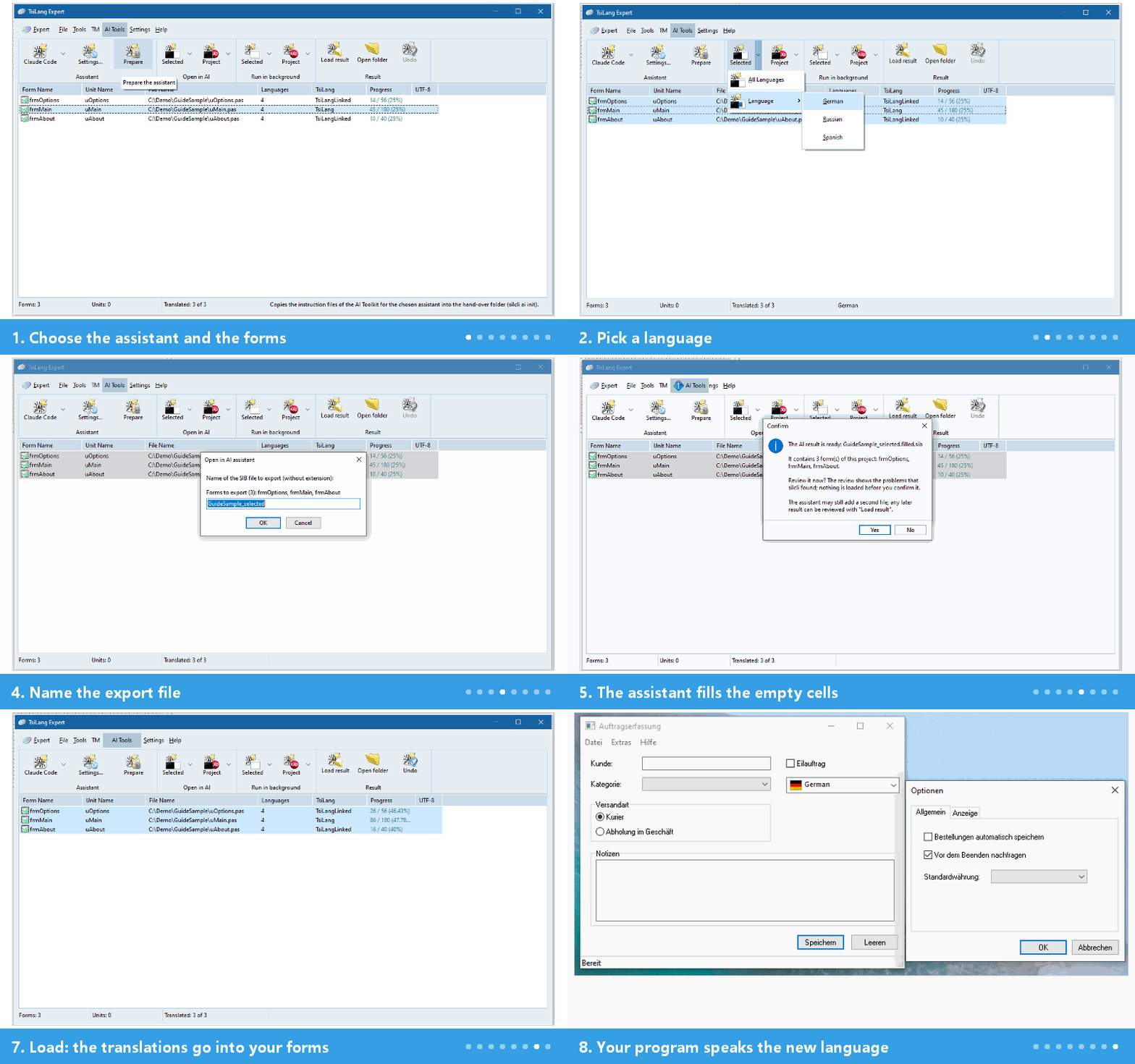
The whole job takes about 15 minutes. Here is the flow from the AI Tools tab of the TsiLang Expert to a translated form:
What You Need
- RAD Studio with TsiLang Components Suite 7.9.12 installed. The setup must include the SILCLI component.
- A project whose forms have a TsiLang component and at least one target language with empty cells.
- An AI assistant, installed and signed in. This guide uses Claude Code, the command-line program. Codex, Gemini CLI, Cursor, GitHub Copilot in VS Code and Claude Desktop work as well, and you can add your own.
Claude Code is not Claude Desktop: the Expert starts the command-line program claude. To check, open a Command Prompt and type claude --version. If a version number appears, you are ready.
Delphi AI Translation in Five Steps
1. Choose the forms, the assistant and a language
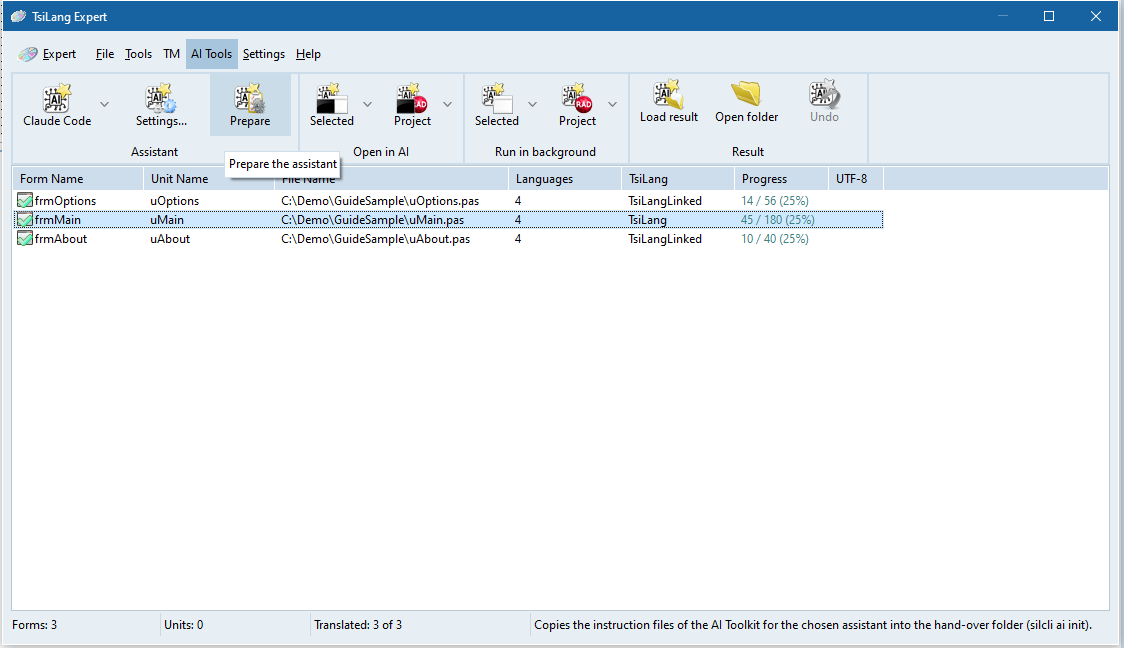
Open the TsiLang Expert (Tools | TsiLang Expert) and switch to the AI Tools tab. Choose Claude Code in the Assistant group and press Prepare once per project. Then select two or three small forms, open the arrow of Open in AI Selected and choose one language, for example German.
2. Start the assistant
Press Open in AI Selected. The first time, a privacy notice explains that the texts of your forms are sent to the provider of your assistant. Confirm it and give the export file a name.
3. Let it work
Claude Code opens in a window of its own, reads the exported file, fills only the empty cells and validates its own result. For three small forms and one language this took about 40 seconds in our test. On its very first run in a folder it asks whether you trust the folder and the TsiLang server: answer yes.
4. Review the result
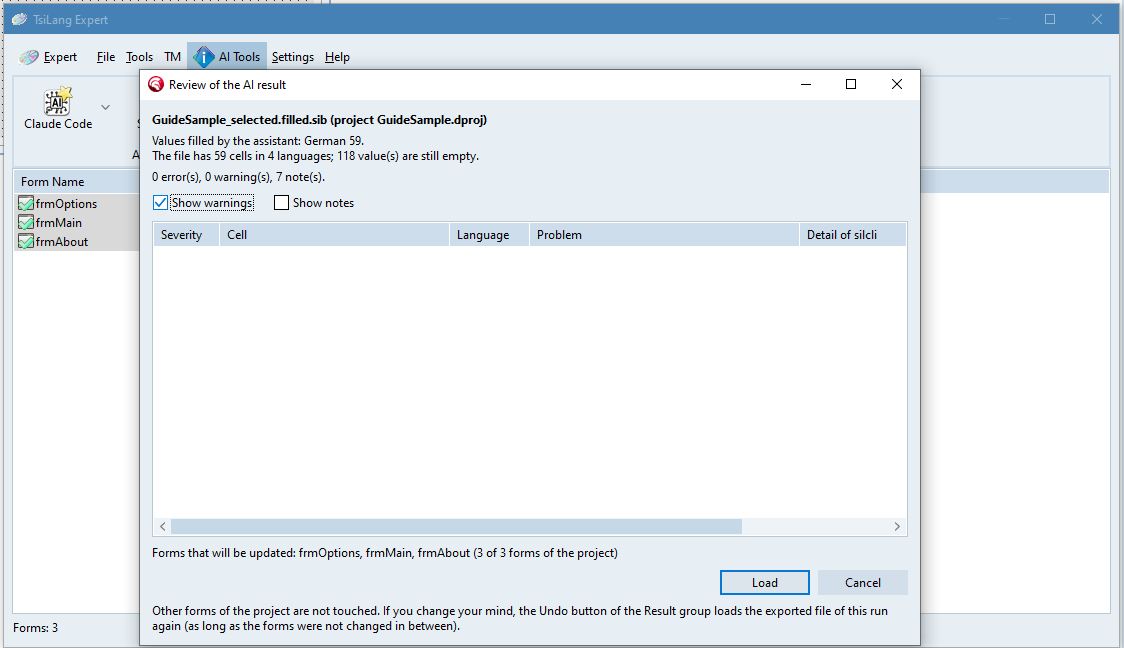
When the result is ready, the Expert opens a review window: how many values were filled and which problems were found, such as a damaged placeholder, a lost line break or a changed accelerator key. Nothing has been loaded into your forms yet.
5. Load the translations
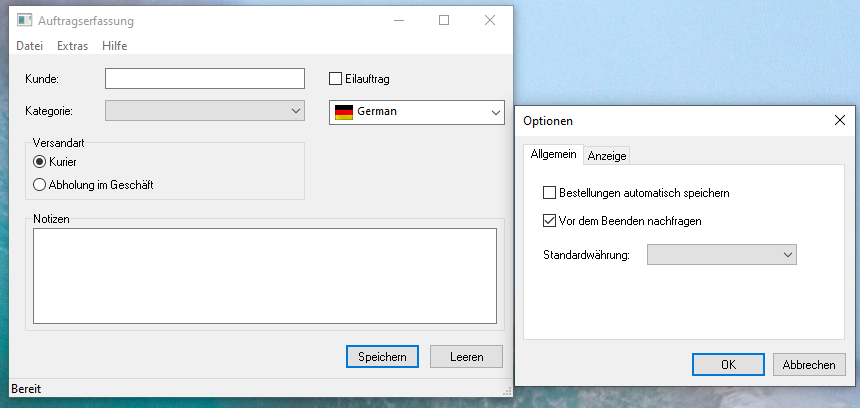
Press Load. The translations go into the forms that are in the result file, and into no others. Start your program, switch the language, and you are done.
You Stay in Control
- The assistant never has access to your source files. It works on an exported copy of the texts in a separate hand-over folder, and nothing reaches your project before you press Load.
- Only empty cells are filled. Existing translations are never changed, so you can run it again and again without losing work.
- You see every technical problem before loading.
- Undo in the Result group takes a load back with one click.
An AI translation still needs a human check. The review finds technical problems. It cannot tell you whether a text sounds right or uses your product’s terms, so let someone who knows the language read the result before you ship.
Keep Your Delphi AI Translation Up to Date
Add a button or a message to a form and the new text is just another empty cell: press Open in AI again and only the new texts are translated. A new language works the same way: add it to the TsiLangDispatcher, run, review, load.
The cost is the usage of your assistant’s account. In our tests most runs cost less than 1 US dollar, but it depends on your plan and the size of your forms. Translating one language per run keeps cost and time predictable.
Next Steps
- Download TsiLang Components Suite and try it on your smallest form.
- See everything that is new in 7.9.12 on the What’s New page.
- The full step-by-step version with every screenshot is in the TsiLang Help and Manual: “Translate Your First Form with an AI Assistant”. Other assistants are covered in “Connect an Assistant to the Expert”, and build servers and scripts in “Translate from the Command Line or a Build Script”.